 AceThinker Recorder


On This Page
Screen recording has become an important part of our modern digital life. Whether you're creating tutorials, capturing gameplay, recording meetings, or saving online lessons, this tool is a handy way to share and keep information. It also helps you explain steps, demonstrate skills, and document activities with ease. Nevertheless, if you're using a Samsung laptop, you may notice there's no Samsung-branded recorder available. In fact, Samsung laptops don't have a built-in Screen Recorder app at all. But there's no need to worry—Windows provides a useful screen recording tool, and several third-party apps offer even more advanced features. With these options, anyone can record their screen easily and effectively. In this guide, we'll show you the best ways to screen record on Samsung laptop without hassle.
Record Screen on Samsung Laptop with Windows Game Bar
The first method we are going to try is utilizing the Windows Game Bar. If you are utilizing Windows 10 or 11, this built-in feature offers a straightforward way to capture screen activities. Because this screen recording tool is already included with Windows, you don't need extra software to start recording. Moreover, it works well for tutorials, gameplay, and short meeting clips. Before you begin, make sure that the Game Bar is enabled in Windows Settings so the shortcuts will work and you can screen record without using your mouse.
Besides, you have to remember that Game Bar focuses on app and gaming recording, so it cannot capture the full desktop or certain protected content. This includes the File Explorer or the desktop itself, as it is designed to record individual application windows rather than the entire operating system interface. When it comes to the recording output, the resulting video files are saved in high-quality up to 1080p at 60 frames per second. Nevertheless, for many users, it's the simplest screen recorder for Samsung laptop use, offering easy controls, microphone capture, and a straightforward start/stop workflow. Below are clear steps to get you recording quickly. Follow them and you'll finish your first recording.
Step 1: Enable Game Bar
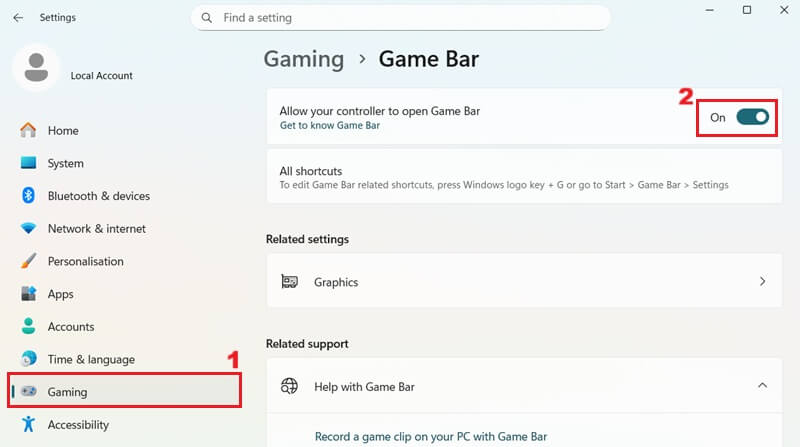
To begin, on your Samsung laptop, open "Settings." Then, go to "Gaming" and select "Game Bar." On the right side of the window, toggle the switch to "On" to activate the Game Bar. This allows you to open the overlay with Win + G. If it's off, Game Bar shortcuts and the recording controls will not appear.
Step 2: Open an App or Window
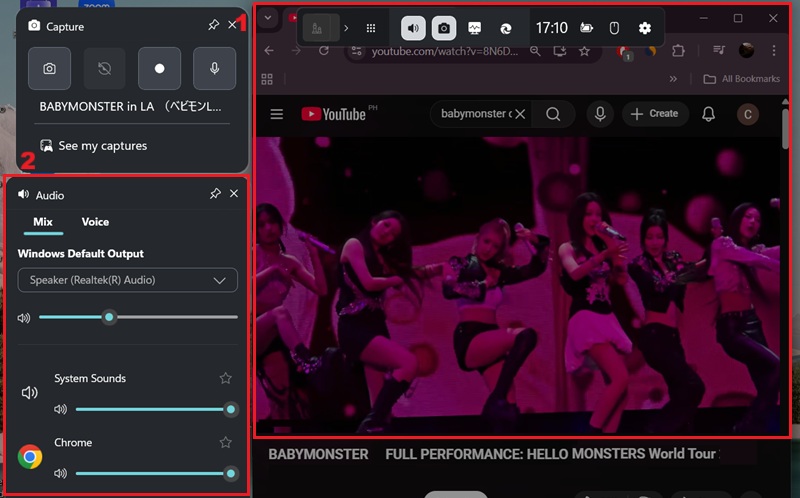
Once the Game Bar is enabled, launch the application or window you intend to record. Then press Win + G to open the Game Bar overlay and check the Capture widget. On the Audio widget, you can adjust the volume for various audio sources, including system sounds, applications, and your microphone, ensuring optimal sound quality for your recording.
Step 3: Record and Control the Session
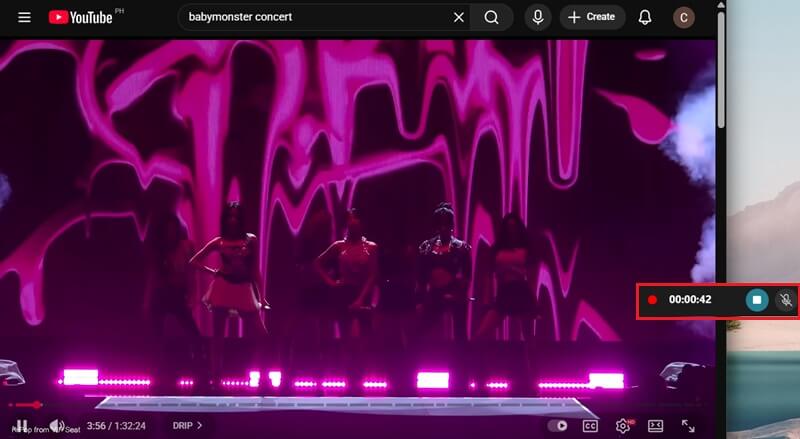
If you prefer a quick start without the overlay, press Win + Alt + R to begin recording immediately. Alternatively, you can click the round "Record" button in the capture widget, and the recording timer will emerge on your screen. While recording, you can use the small Game Bar timer or overlay to stop or enable the microphone if you need to mute it or capture your voice.
Step 4: Stop and Access Recordings
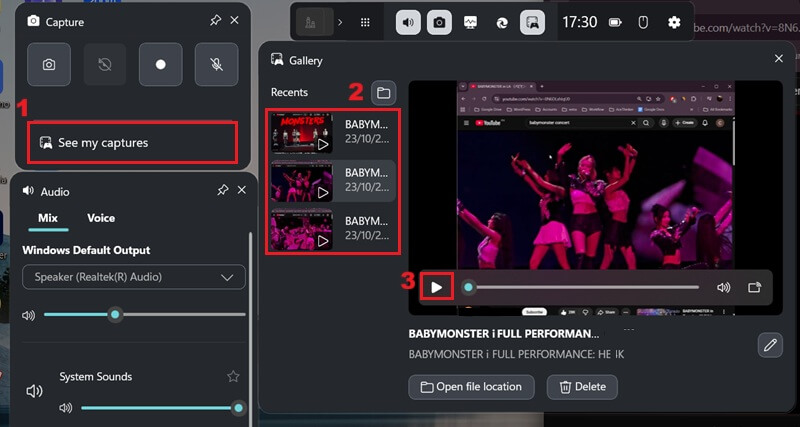
When you're finished, click the stop button on the same widget, or press Win + Alt + R again to end the recording session. A notification will appear, confirming that your Samsung recording is saved. To access it, open the Game Bar, select "Show all captures" in the Capture widget, and you will be directed to the "Videos" folder. Then, click play to review your Samsung recordings.
"Game Bar is available on Samsung laptops."
Xbox Game Bar comes pre-installed on Samsung laptops running Windows 10 or 11.

Record Desktop on Samsung Laptop Using Aqua Demo
If you're looking for a more flexible and comprehensive screen recording solution than the built-in Windows Game Bar, Aqua Demo offers a robust alternative. It supports multiple Samsung models, provided your system runs on a compatible version of Windows (Windows 7 or later) or macOS (macOS 10.10 or later). This screen recording software is designed to capture a broader range of activities on your Samsung laptop. Unlike Game Bar, Aqua Demo can record the entire desktop, including File Explorer and protected content. This means you can record Netflix videos, private YouTube videos, and other content that Game Bar cannot access. Furthermore, Aqua Demo offers advanced functionalities such as customizable recording regions and scheduled recordings.
Additionally, the videos are recorded in high-quality with options for various resolutions (up to 4K) and frame rates, making it a suitable tool for professionals and content creators. It also supports considerable output formats, such as MP4, MOV, AVI, and more. It also enables you to freely choose between your system sound and microphone inputs for diverse recording scenarios, enhancing audio clarity for tutorials or presentations. Here are the steps on how to record on a Samsung laptop.
Step 1: Download the Samsung Recorder
Begin by downloading the Aqua Demo installer. You can utilize the download buttons provided above. Once the download is complete, double-click the installer and follow the on-screen prompts to completely install it on your Samsung laptop. Then, the Samsung laptop screen capture tool will launch automatically.
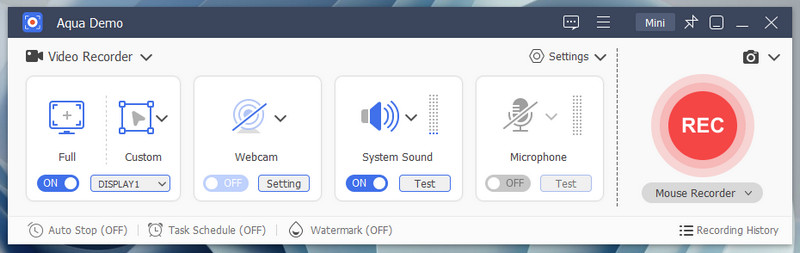
Step 2: Modify Screen Recording Options
Before you initiate recording your Samsung laptop screen, you need to modify the settings. On the main interface of Aqua Demo, click the "Settings" and from the drop-down menu, you can select the "Output Settings." Here you can alter any of the default parameters for video format, resolution, codec, frame rates, and more. To keep the modifications, click the "OK" option on the lower right part of the window to save them.
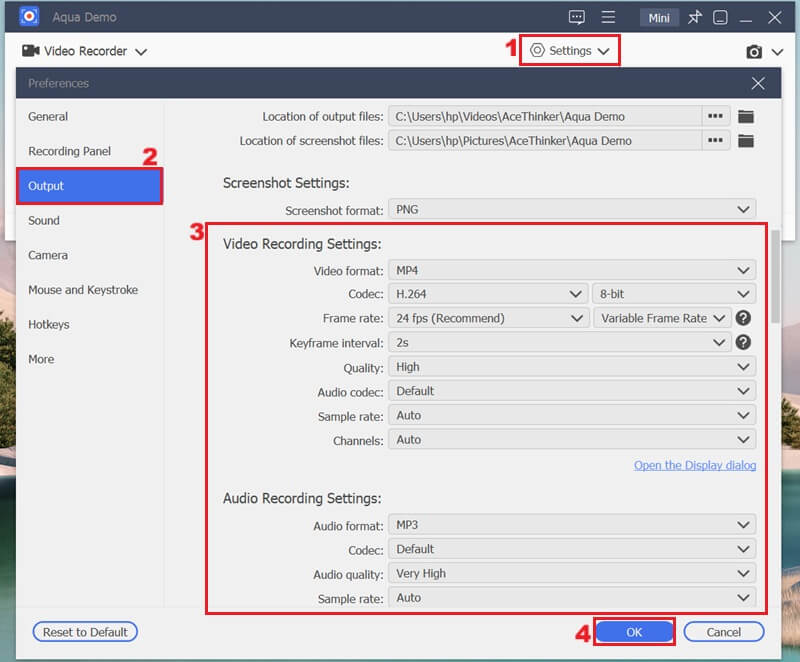
Step 3: Start Recording on Your Samsung Laptop
Once configurations are complete, access the application or windows you want to record from your Samsung laptop. Then, select the recording option, such as full-screen or custom regions. After that, enable the audio input by toggling the buttons for system sound or microphone. Finally, click the "REC" option available on the right panel of the tool to commence the recording.
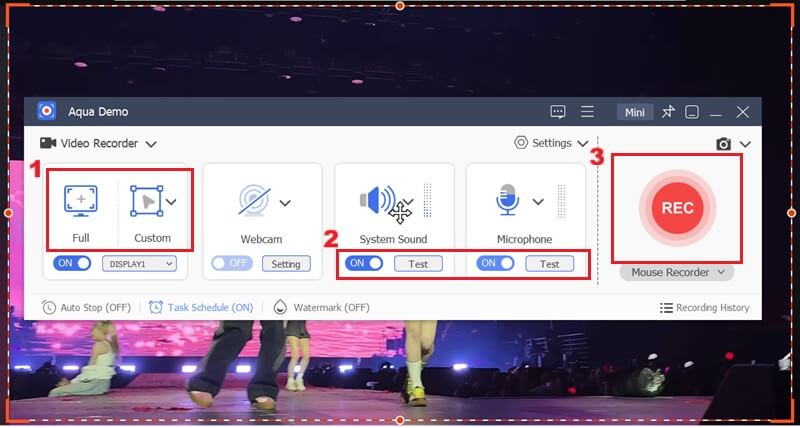
Step 4: Preview the Video Recordings
When your recording is finished, click the "Stop" icon to automatically access the preview window. Here, you can play your recorded video on your Samsung laptop. Then, you can trim the footage to remove unwanted segments. After that, it will be saved to your Samsung laptop’s designated output folder.
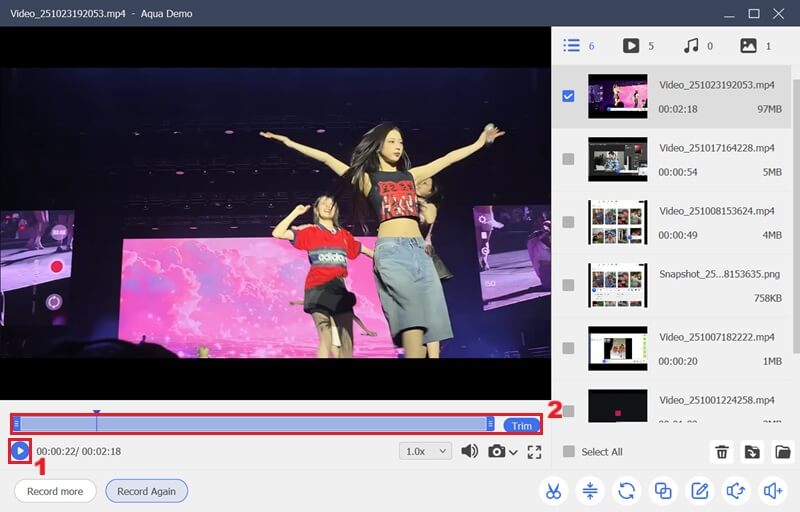
Other Alternative Tools to Record on Samsung Laptop
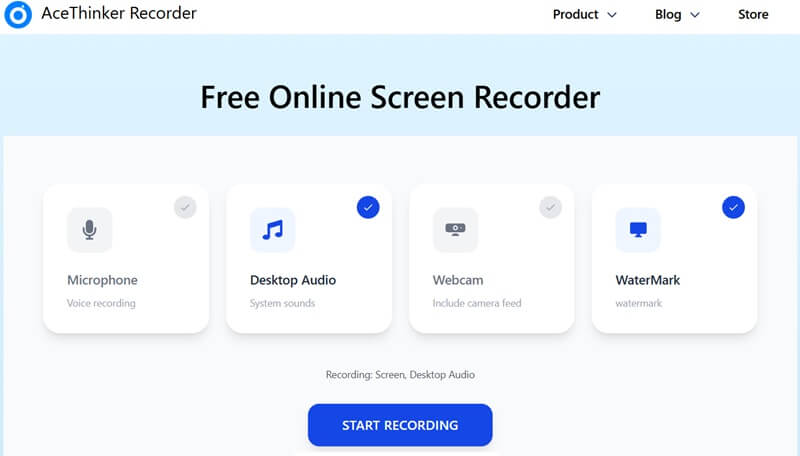
1. Free Online Screen Recorder
Another option to screen record on Samsung laptop is to utilize an online tool like Free Online Screen Recorder. This web-based solution offers a convenient way to capture screen activity directly through your browser. It eliminates the need for software installation, making it ideal for quick recordings or situations. It also supports recording the entire screen of your Samsung laptop, specific application windows, or tabs within your browser.
In addition, this screen recorder can record in 1080p HD, allowing for high-quality video output. This makes it suitable for tutorials, presentations, or capturing detailed on-screen processes. On top of that, you can capture the system audio or microphone input simultaneously, which is essential for creating comprehensive video content with voiceovers or ambient sounds. Nonetheless, it does not offer offline capture since it demands a reliable internet connection to function.
2. OBS Studio
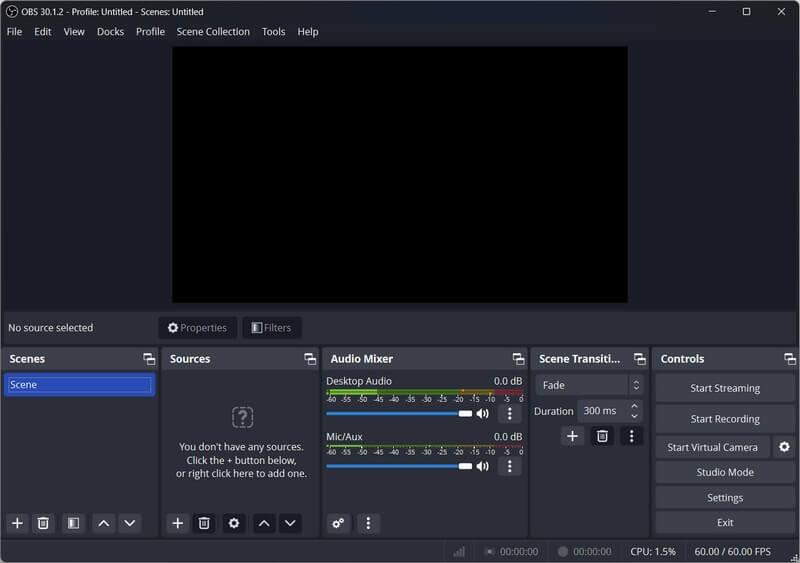
OBS Studio is a potent, free, and open-source program that lets you record desktop on Samsung laptop with professional-level control. It supports multiple output formats, including MP4, MKV, and FLV, so that you can choose the best option for editing or sharing. This software gives users full flexibility to capture their entire screen, specific windows, or custom regions, making it perfect for tutorials, presentations, and live streaming.
Moreover, you can mix video sources, add overlays, and record with system or microphone audio, all in one interface. It also boasts advanced features like scene transitions, noise suppression, and virtual camera output. This caters to complex video recording on your Samsung laptop. In terms of compatibility, OBS Studio runs smoothly on Samsung laptops running Windows 10 and 11, ensuring stable performance even during long recordings. However, it can be complex for beginners to record with OBS due to its advanced settings and interface.
3. ShareX
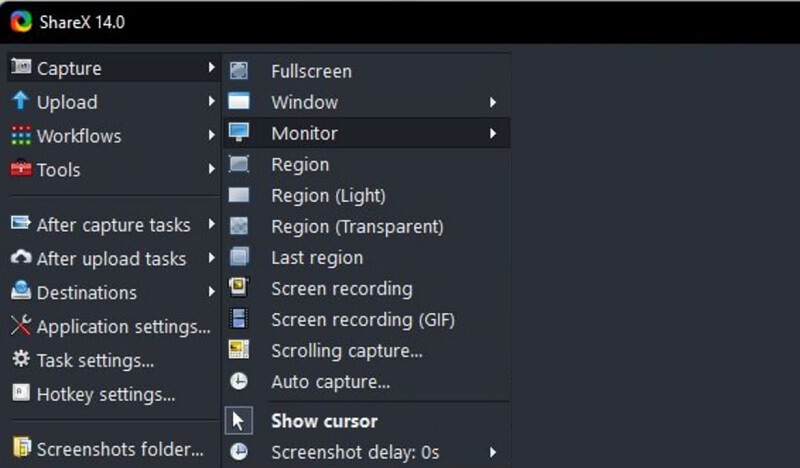
Last on the list of reliable screen recording tools for Samsung laptops is ShareX. It is a free and open-source tool that makes it effortless to record screen on Samsung laptop. ShareX works perfectly on Samsung laptops running Windows 10 and 11, and it doesn’t require high-end hardware to function efficiently. You can also efficiently customize hotkeys and recording settings. It lets you capture the whole screen or your Samsung desktop, a specific window, or a selected area, depending on what you need.
Moreover, ShareX supports multiple output formats, including MP4, GIF, and AVI, giving you flexibility for saving or sharing recordings. The program also includes useful features like screen capture, scrolling screenshots, and quick uploading to cloud services. Its lightweight design ensures smooth performance without overloading your system resources. However, it can be confusing for novices due to its broad range of tools and options.
Frequently Asked Questions
How can I screen record on my laptop?
You can screen record on your laptop using Windows' built-in recording tools, such as the Xbox Game Bar. It lets you easily capture app, game, or browser activity. Alternatively, you can employ third-party software for more advanced recording features and flexibility.

Is it possible to record your laptop screen with sound?
Yes, you can record both the screen and audio on your laptop using Aqua Demo. Just make sure to enable the microphone or system audio option before starting the recording to capture sound clearly.
Can you record your screen on a Samsung laptop?
Yes, you can easily record your screen using Windows' built-in tools, such as the Game Bar, or other screen recording apps. Although Samsung models don't have their own recorder, these tools work perfectly for capturing videos, tutorials, and gameplay.
Wrapping Up
There are several effective ways to screen record on a Samsung laptop, depending on your needs and preferences. The Windows Game Bar is perfect for quick, simple recordings because it's built into Windows. Meanwhile, third-party tools like Aqua Demo, OBS Studio, and ShareX offer more advanced features, letting you record your full desktop, customize settings, and produce high-quality videos. Among these options, Aqua Demo stands out as the best all-in-one solution for smooth, HD recording with flexible audio and screen settings. Overall, whether for work, study, or gaming, these tools make it easy to capture content on your Samsung laptop.
| Screen Recorder | Best For | Limitation |
|---|---|---|
| Xbox Game Bar | Quick captures of apps or games | Cannot record full desktop or File Explorer windows |
| Aqua Demo | High-quality full-desktop recording | It has watermarks on free trial version |
| Free Online Screen Recorder | Fast web-based recordings | Not ideal for offline or long recordings |
| OBS Studio | Advanced users needing full control | Steep learning curve |
| ShareX | Lightweight recorder and screenshot tool | Less suited for long full-game recording or live streaming |