 AceThinker Recorder


On This Page
Microsoft Edge is one of the top web browsers for both Windows and macOS. It is built on the Chromium engine, which means it offers fast performance, strong security, and wide website compatibility. Because of this, many users rely on Edge for work, learning, and everyday browsing. So, there are many situations where people want to screen record Microsoft Edge to show what is happening on their screen. For example, screen recording is useful for creating tutorials and how-to guides, since visual steps are often easier to follow than written instructions. In addition, users can record bugs or errors to clearly explain issues to IT teams or developers. Moreover, businesses use screen recordings for training, onboarding, and remote collaboration, especially when teams work across different time zones. Content creators also record Edge to make demos, reviews, or educational videos. Overall, screen recording helps simplify complex ideas. Therefore, this article will show multiple safe and easy ways to screen record Microsoft Edge using reliable alternative tools.
| Tools | Best For | Output Formats Supported |
|---|---|---|
| Aqua Demo | High-quality long recordings | MP4, MOV, MKV, WMV, WEBM, and more |
| Microsoft Stream Screen Recording | Quick recordings inside M365 | MP4 and WEBM |
| Screencastify | Tutorial videos with edits | MP4 |
| Scre.io | Basic recordings | MP4 |
| Nimbus Screen Recorder | Step-by-Step recordings | MP4 and GIF |
| Screen Recorder Add-on | Simple recordings | MKV only |
Best Method to Record Microsoft Edge Screen
One of the most effective ways to record Microsoft Edge is to use the Aqua Demo. This tool can record at 4k resolution and 60 FPS to record web activity in Edge, including games, how-to guides, live streams, and more, with high-quality output. In addition, it can record system audio, microphone voice, or both, which is ideal if you want to narrate while showing browser activity. During recording, you can also add drawings, text, arrows, and highlights directly on screen to emphasize points or steps inside Edge. Aside from that, recording video on a PC is easy with Aqua Demo because it's user-friendly, even for beginners, so you don’t need technical expertise. You can also easily choose whether to capture the full screen, a selected region, or just the Edge browser window. To learn how to use this tool, check the guide below.
Step 1. Get the Aqua Demo
Begin the steps to download the Aqua Demo tool installer. Simply choose one of the download buttons presented above to get it. After downloading the file, proceed with the installation process. Once done, the tool will start automatically.
Step 2. Choose Preferred Settings
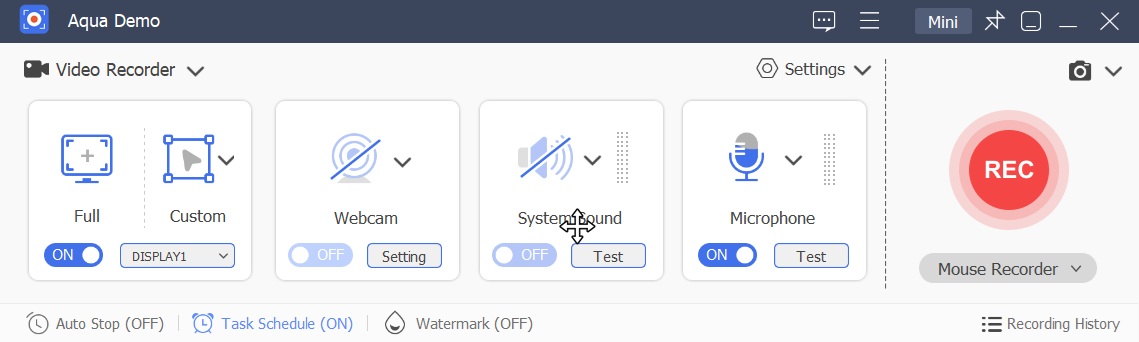
Before you start recording, you need to adjust the settings first. Click the Settings drop-down menu and select Record Setting. In the pop-up box, you see various settings, including the general, output, sound, and more. Visit each section and modify it as you like.

Step 3. Set Up the Recorder
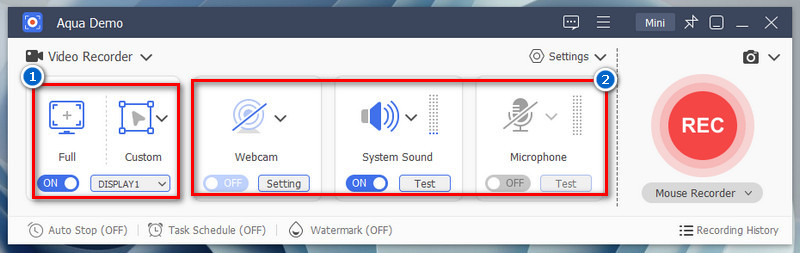
Next, open Microsoft Edge and set up the activity you want to record. Then choose the record aspect ratio you prefer: full screen or Edge screen only. After that, enable the System Sound, Microphone, and Webcam if you use all three, or turn on only the ones you use.
Step 4. Start Recording Edge Screen
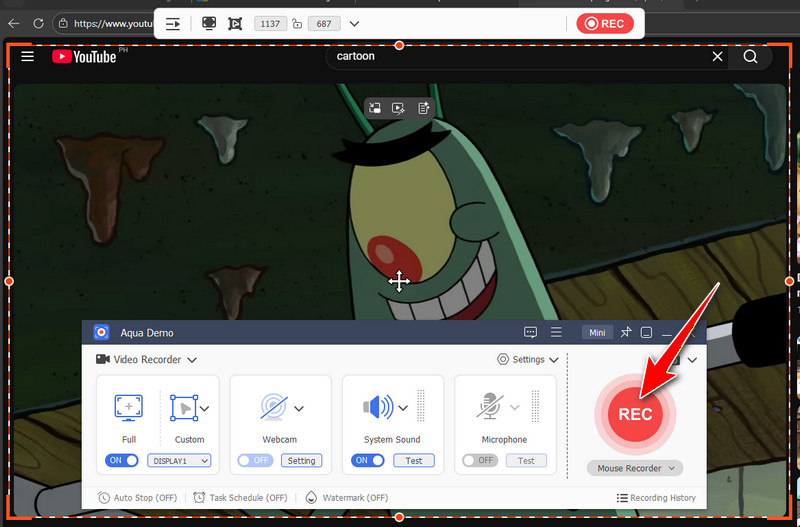
When you're ready, click the big red REC button, and it will start once the 3-second countdown finishes. While recording, you use the annotation tools by clicking the pencil icon. If you decide to stop the recording, click the small box labeled "Stop" to end it.
Step 5. See the Recorded Activity
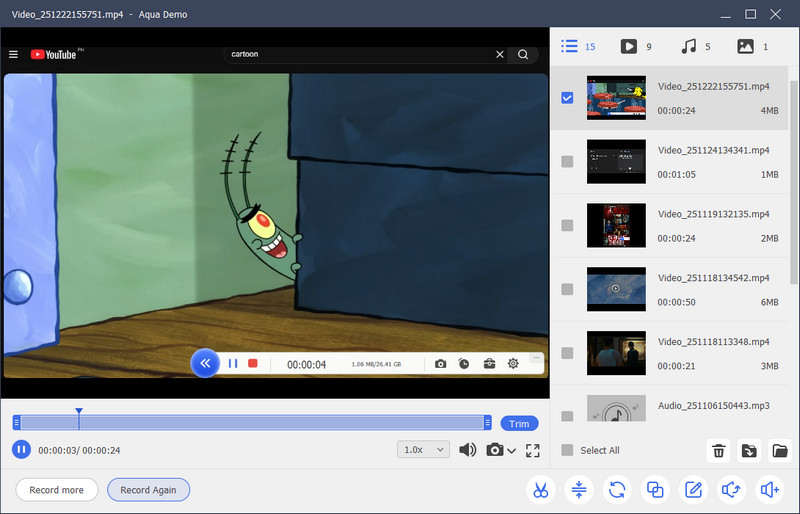
After stopping the record process, another window will appear on your screen. The pop-up box contains the recorded activity to capture on your Edge browser using Aqua Demo. The tool also automatically saves the recorded video to your selected output folder and video format. All you have to do is preview the video and see if you’re satisfied with the results.
Use Microsoft Edge Built-in Recorder
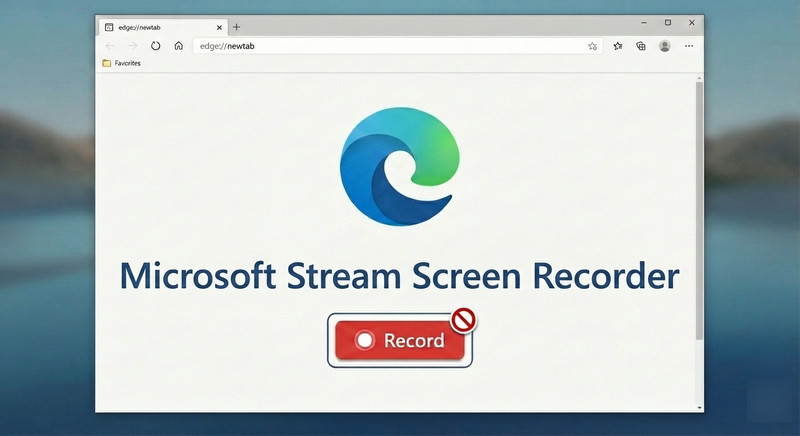
Did you know that Microsoft Edge has a built-in screen recorder? Yes, it is called Microsoft Clipchamp Screen Recorder, previously known as Microsoft Stream Screen Recorder. Microsoft has merged Stream and Clipchamp into a unified video platform under the Clipchamp brand. As a result, if you’re using the latest version of Microsoft 365, you may be redirected to Clipchamp when you open Stream.
This Microsoft Edge screen recorder has various features. Of course, it has a flexible screen capture option that lets you record your browser tab, a single window, or the entire screen for precise capture of Microsoft Edge activity. The screen recorder also lets you record your screen and create webcam videos in Microsoft 365, making it useful for explainer videos, product demos, or quick webcam recordings. Aside from that, the built-in reorder offers basic editing tools that you can use after recording. This includes trimming, splitting, adding music, and applying effects directly in the Clipchamp editor to enhance the video. Moreover, you can save recordings in standard video formats, such as MP4 at 1080p with 30-60 FPS, and share them on social media or cloud services. Below, we provide a quick guide to accessing the tool.
Step 1: Open Microsoft Stream
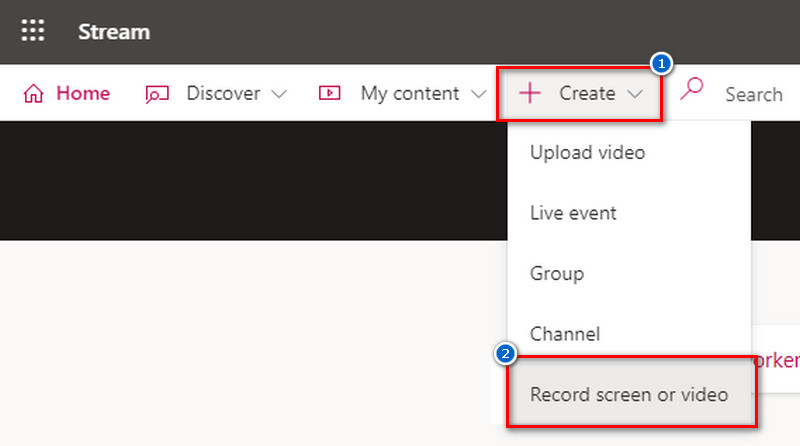
Start by opening Microsoft Stream in Microsoft Edge using your Microsoft 365 account. Once you are on the landing page, click the Create drop-down menu and select Record Screen. Then, the browser prompted you to allow Microsoft Stream to use your camera and microphone.
Step 2. Record Your Microsoft Edge Screen
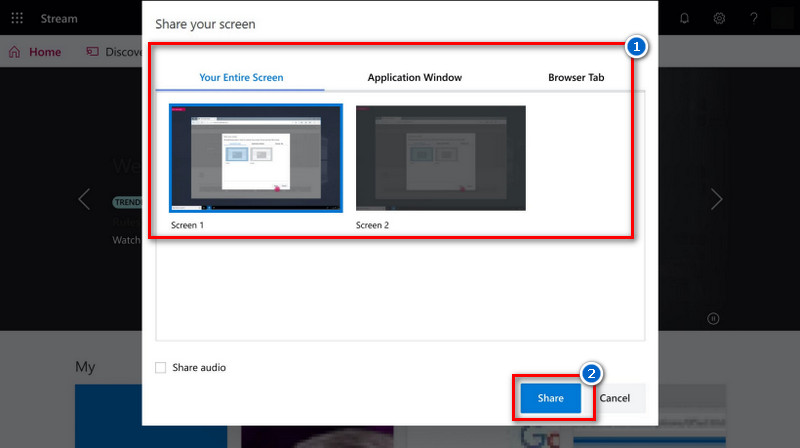
Next, in the pop-up box, click the Recording icon, then choose what you want to capture: a web browser tab, a specific window, or the entire screen. Then click the Share button, and the tool will start recording. When you are done, go back to the Microsoft Stream window and click the Stop icon there.
Step 3. Review and Save the Recording
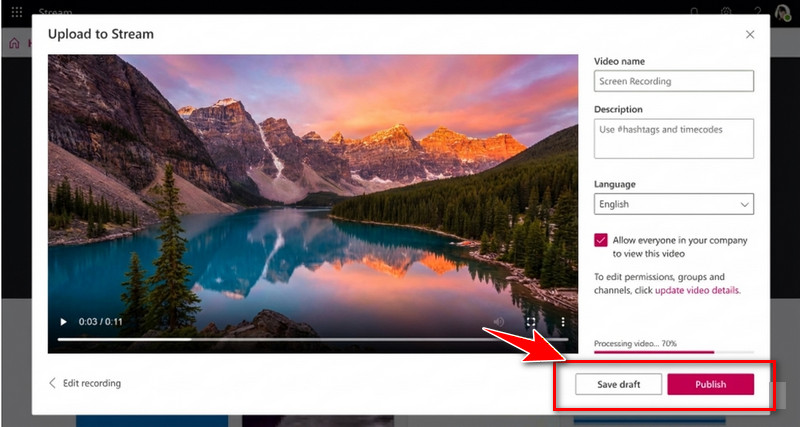
When finished, click the Next button to go to the preview panel. Once satisfied, save the recorded activity on Edge by uploading it to Stream. Simply click Upload to Stream and enter the video details. If you are not ready to publish, select Save as draft. To make the video available immediately, click Publish.
Limitations of Microsoft Stream Screen Recorder
The Microsoft Stream screen recording tool is convenient for quick recordings within Microsoft 365, but users should consider its limitations before relying on it for all screen recording needs.
- Time Restrictions – Individual recordings are often limited to around 15 minutes, making them less suitable for long tutorials or meetings.
- Dependency on Microsoft 365 Account – A valid Microsoft 365 account is required, which can be a barrier for personal or non-business users.
- Operating System Requirements - Recording system audio is supported only on Windows; this feature is not available on macOS or other operating systems.
- Browser-Based Only – Recording must be done in Edge or Chrome; offline recording or standalone desktop capture is not supported.
- Updated Version Requirements - The screen recorder extension for Edge requires Microsoft Edge version 79 or later on Windows 10.
Top 4 Extensions/Add-ons for Screen Recording Microsoft Edge
Recording your Microsoft Edge screen is easier with browser extensions and add-ons. These tools let you capture your screen, audio, and webcam directly from Edge without installing heavy software. In this section, we highlight the top 4 extensions that are reliable, easy to use, and perfect for screen recording.
1. Screencastify
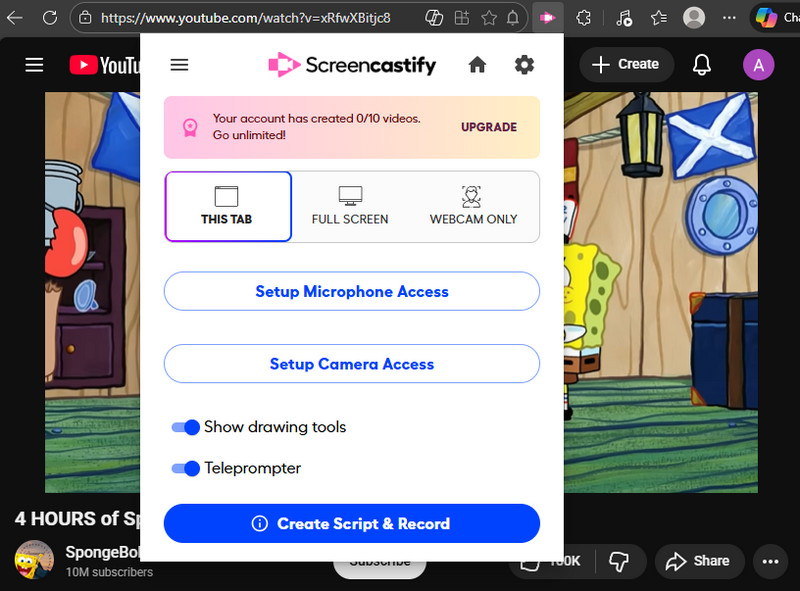
Screencastify for Edge is a simple but powerful browser extension that lets you record screen activity. The tool is designed to be easy for beginners and professionals alike, with a straightforward interface that works directly in Microsoft Edge once installed. In addition, like other tools, Screencastify lets you record computer audio and microphone audio during recordings. Furthermore, this screen recorder extension for Edge lets you capture your entire screen, a specific browser tab, or add a webcam feed for picture‑in‑picture style recordings. This makes it easy to record tutorials, demos, and walkthroughs right inside Microsoft Edge. You can also enable annotation tools and use them in real time, such as a pen, highlighter, or pointer, to emphasize important actions or areas during recording. However, the free plan is limited to 10 recordings, with a maximum of 30 minutes per recording, and adds a watermark to the output.
2. Scre.io
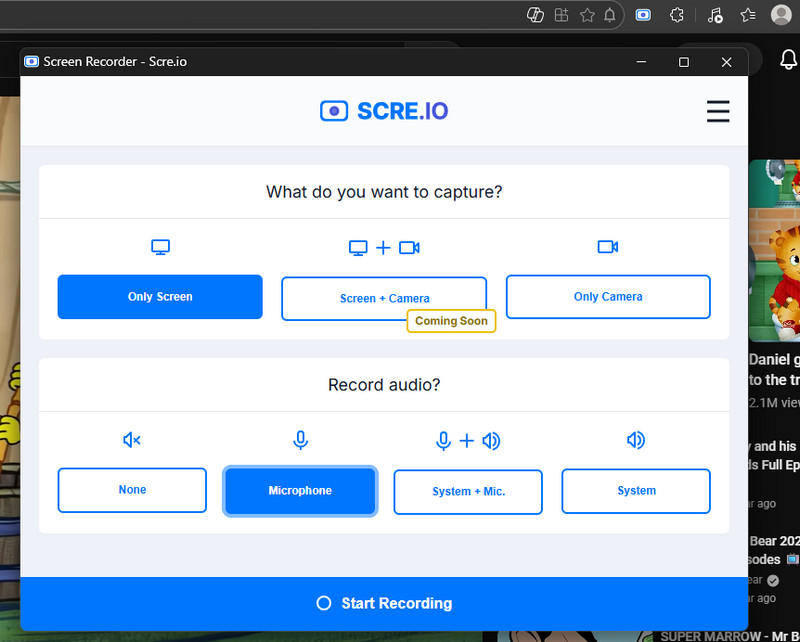
The next on the list for screen recorder add-ons for Microsoft Edge is Scre.io. This tool is free to use without limitations, so you can do unlimited recording with no time limits, and capture short clips or long sessions without cut‑offs. It also doesn’t add watermarks to your videos, keeping your recordings clean and professional. Additionally, you can record your screen, a specific window, or just a browser tab, which is perfect for capturing exactly what you need in Microsoft Edge. However, the recording screen with a webcam is currently unavailable, so you can only choose whether to record the screen or the camera. Moreover, Scre.io allows you to record the screen and audio Windows 10 and Mac, both internal audio and microphone audio. Furthermore, recordings are done locally, so your videos stay on your device and aren’t automatically uploaded to the cloud.
3. Nimbus Screen Recorder
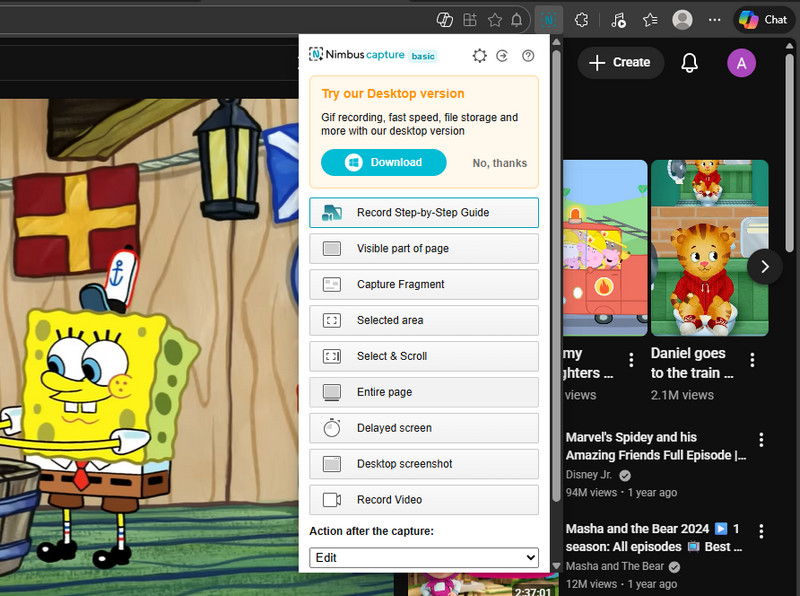
Nimbus Screen Recorder is another screen recorder for Microsoft Edge that offers many features. It lets you record video of your screen directly in Microsoft Edge to capture tutorials, demos, or how‑to guides. You can record the entire screen, selected regions, or a specific browser tab, giving you flexibility for different recording needs. In addition, Nimbus lets you adjust the video quality and frame rate to balance quality and file size. Also, annotation tools can be used during or after recording to highlight key actions. During recording, you can toggle the microphone, system sound, and webcam (depending on the plan) to add narration and visuals in one go. Beyond video, Nimbus also captures full‑page or partial screenshots, including scrolling pages. You can save recordings locally or upload them directly to cloud services like Nimbus Note, Google Drive, and Dropbox.
4. Screen Recorder - Microsoft Edge Add-ons
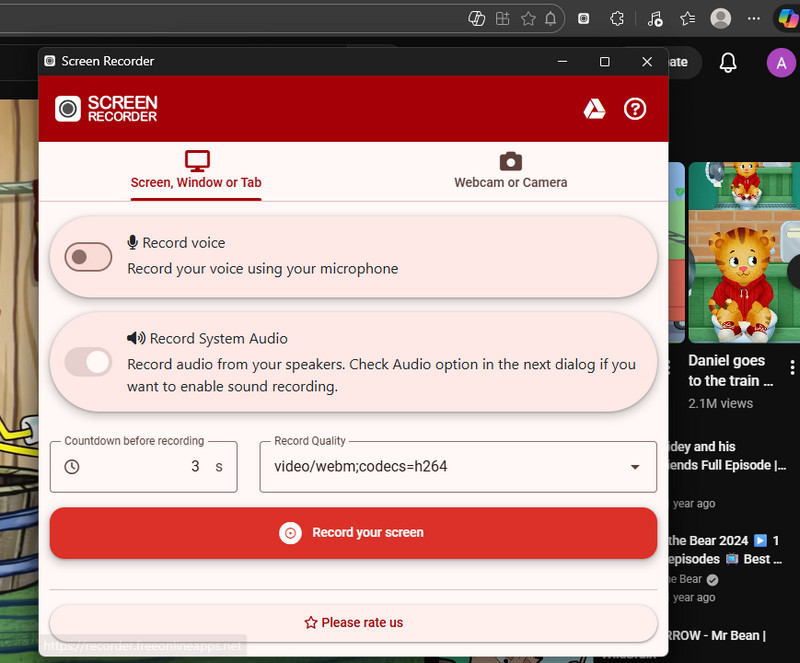
To those who are looking for a simple and straightforward way to record screen on Edge browser, you can use Screen Recorder – Microsoft Edge Add-ons. It has basic recording functionality that lets you record your screen directly from the browser, capturing browser content or desktop activity quickly with just a few clicks. The extension makes it easy to capture what’s happening on your screen without installing heavy third-party software. Moreover, it supports recording audio from the microphone and from the computer, along with the screen, for clear narration. Aside from that, you can choose your preferred recording quality and enable a countdown timer before recording starts. After recording, you can instantly see the file size, making it easier to manage storage or decide whether to re-record before saving or sharing the video.
Frequently Asked Questions
Can you screen record in Microsoft Edge?
Yes, you can screen record in Microsoft Edge using built-in tools like Microsoft Stream, using screen recording extensions, and third-party software. These options let you capture your browser activity, audio, and sometimes webcam without extra software. However, the built-in recorder may have some limits, such as recording length. On the other hand, extensions and third-party tools give you more flexibility for different recording needs.

Does Microsoft Edge support extensions?
Yes, Microsoft Edge supports extensions that add extra features to the browser. You can install add-ons from the Microsoft Edge Add-ons store, and it also supports many Chrome extensions because it runs on the same Chromium engine. This means you have a large selection of tools available. Extensions can help with tasks like screen recording, ad blocking, and productivity.
Is it safe to install browser extensions?
Installing browser extensions can be useful, but they are not always completely safe. Extensions often request broad permissions, which can expose your data if the extension is malicious or compromised. Also, the more extensions you install, the higher your security risk becomes. To stay safe, only install trusted extensions and keep the number of extensions to a minimum.
Conclusion
There are several ways to record your screen in Microsoft Edge, depending on your requirements. Microsoft Stream Screen Recorder provides straightforward solutions for quick, basic recordings, suitable for short tutorials, meetings, or internal sharing. For greater flexibility, browser extensions and third-party screen recorders like Aqua Demo offer higher quality, fewer restrictions, and more advanced controls. Moreover, add-ons are useful for fast, no-install captures, while desktop tools support longer videos and advanced features. For quick captures, built-in or extension-based recorders are sufficient. On the other hand, for more polished videos with editing and audio controls, consider feature-rich software such as Aqua Demo. Therefore, understanding these options will help you record Microsoft Edge screens effectively.
Microsoft Edge is a web browser developed by Microsoft, designed to replace Internet Explorer.
It offers faster browsing, smoother performance, and improved security features.