 AceThinker Recorder


On This Page
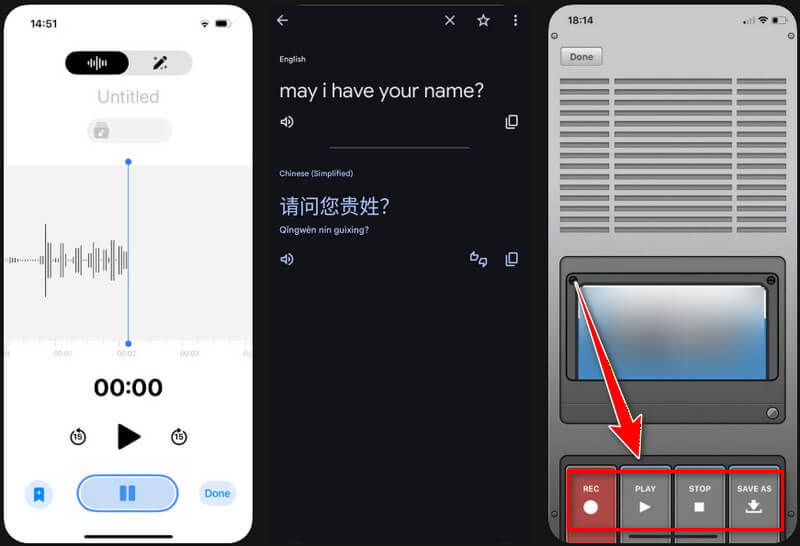
Google Translate is a platform that allows you to understand words and phrases in many languages. It supports over 130 languages, including English, Spanish, German, Chinese, Japanese, Korean, Arabic, and more. Besides that, this service is enhanced by AI models, like PaLM 2, which can account for regional varieties, dialects, and different spelling standards. In addition, it has a voice feature that reads translations aloud, making it easier to learn proper pronunciation. Moreover, this spoken audio is useful for many situations. Some people want to record Google Translate voice to improve their language learning. On the other hand, others use it for content creation, tutorials, or accessibility needs. Furthermore, having a saved audio file makes it easy to replay translations anytime, even without an internet connection. That’s why this article will guide you through easy methods to record Google Translate voice on computers, phones, and tablets.
| Recorders | Format(s) Supported | Quality / Bitrate Options |
|---|---|---|
| Xbox Game Bar | MP4 | Record at 30 or 60 FPS, and choose audio quality up to 192 kbps |
| QuickTime Player | MOV and AAC | Export video in resolutions up to 4K or 1080p, and choose between HEVC or H.264 |
| Aqua Demo | MP4, MP3, AAC, AVI, and more | Can record up to 4K and 320kbps for audio |
| AceThinker Free Online Screen Recorder | MP4 | Up to 720p output quality |
| Easy Voice Recorder | WAV (PCM), M4A (AAC), and 3GP (AMR) | Sample rate options from 8 kHz to 48 kHz, and variable audio quality (low / medium / high) |
| Voice Recorder and Audio Editor | AAC/M4A, WAV, MP3, FLAC, and more | Up to 192kbps |
Record Voice from Google Translate Using Built-in Recorders
Most computers already include built-in recording tools you can use right away. These tools are easy to access and don’t require extra downloads, making them perfect for quick recordings. Below, we discuss the built-in recorders on Windows and Mac with step-by-step instructions.
1. Xbox Game Bar
The built-in Windows recorder is called Xbox Game Bar. This recording tool lets you record your screen while playing games or other activities, such as Google Translate Voice. Likewise, the tool can also record both system sound and microphone audio clearly. The best feature of the Xbox Game Bar is that you can control the volume of your system and apps separately, for cleaner audio when recording. Besides that, you can turn on your microphone during recording if you want to add your voice after the translation. Moreover, this built-in recorder shows how your computer is running while you record. This helps avoid lag or issues that could affect your Google Translate audio quality. Below, we provide a simple guide to recording voice translation in Google.
Step 1. Visit Google Translate
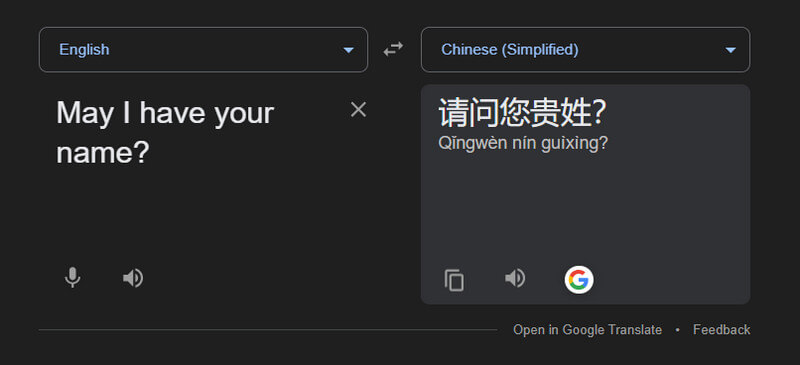
To begin, open a browser and type "Google Translate" in the search bar. Next, paste the word, sentence, or paragraph you want to translate, and Google Translate will automatically analyze the language. After that, select the language from the left corner that you prefer for translation.
Step 2. Launch the Built-in Recorder
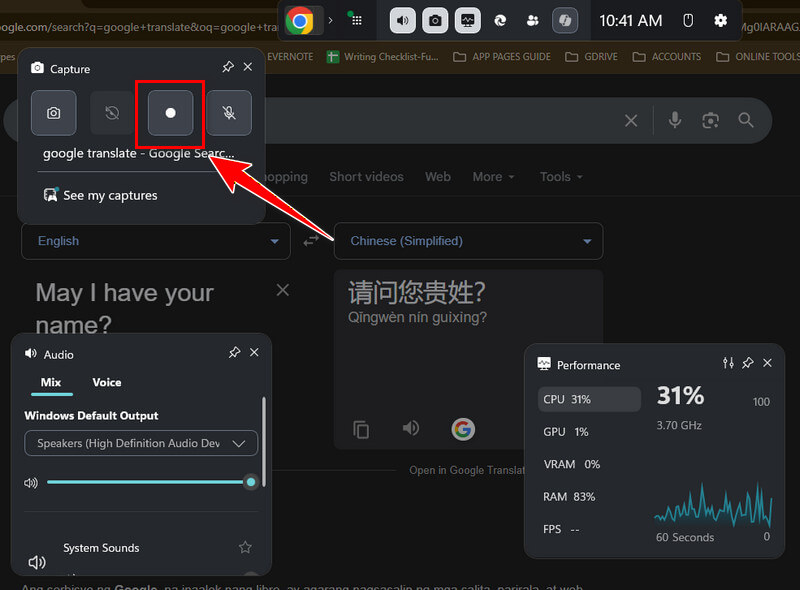
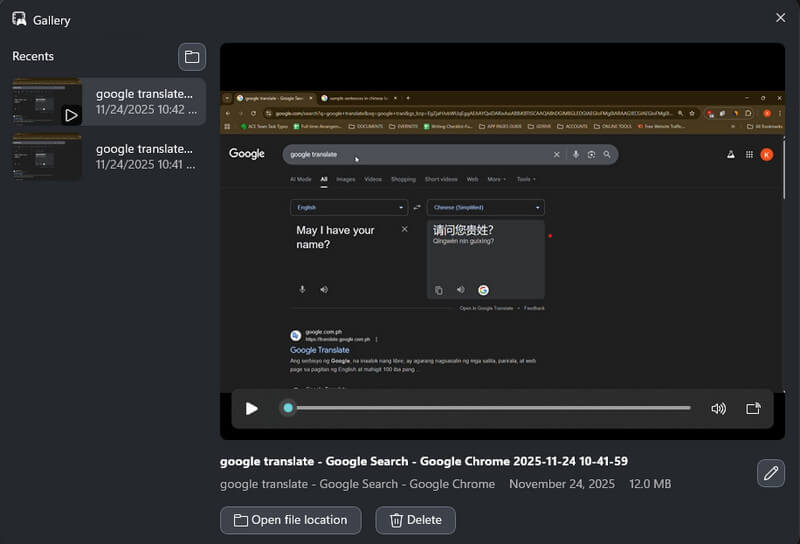
When all set up, launch the "Xbox Game Bar" recorder by pressing the "Win+G" keys on your keyboard. Then, in the pop-up toolbar, click the recording button to start recording. Once the recording begins, click the volume button in Google Translate to start speaking.
Step 3. Stop the Recording
Once you're done recording, click the stop icon in the top right corner. Then, click the pop-up menu to show the recording. Finally, preview the recorded Google translation and start sharing with others.
2. QuickTime Player
For Mac users who don't prefer additional recording software, you can opt for QuickTime Player. Like the Xbox Game Bar, QuickTime is also a built-in recorder, but for Mac computers. It lets you record your entire screen or a selected area, making it perfect for capturing Google Translate voice while you see the text on your screen. However, recording internal audio on a Mac needs an extra setup because it doesn't support it by default. In that case, you need additional software like Soundflower or Loopback to capture Google Translate's voice clearly. Hence, QuickTime Player has a simple and user-friendly interface. You can start recording with just a few clicks without needing advanced knowledge. See how it works below.
Step 1. Open QuickTime Player
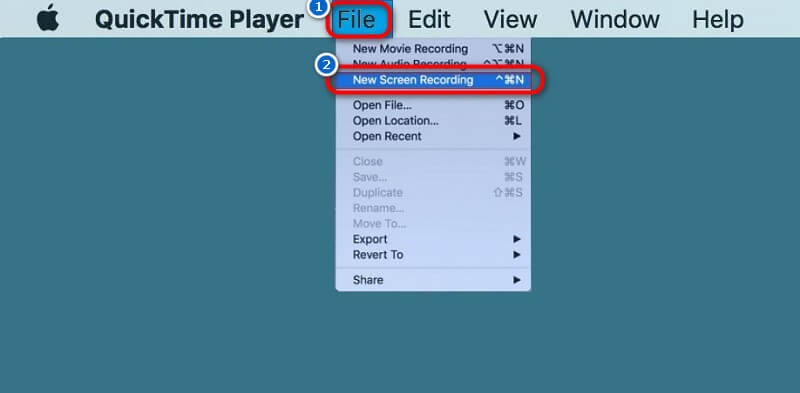
Press the "Command + Space" to open the Spotlight search. Then, type "QuickTime Player" into the search bar. Next, press "Enter" or double-click the QuickTime Player icon when it appears to launch it. After that, go to the "File" menu and click the "New Screen Recording" option.
Step 2. Start Recording Google Translate
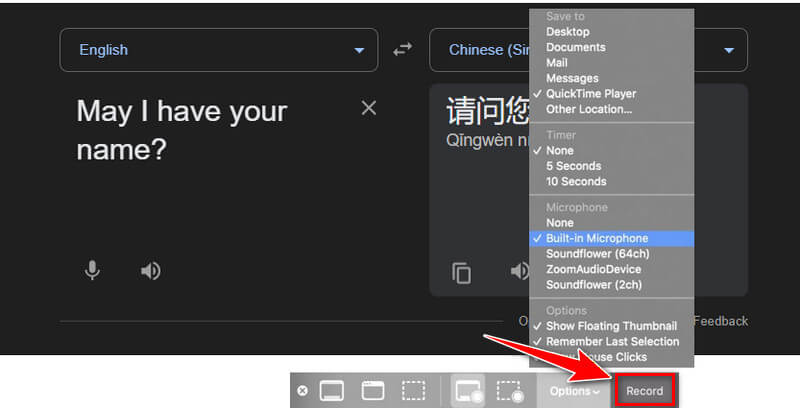
Next, visit Google Translate on a web browser. After that, paste or type the phrases you want to translate into another language. When ready, click the record button, select a recording aspect ratio, and the recording will start.
Step 3. Stop the Recording
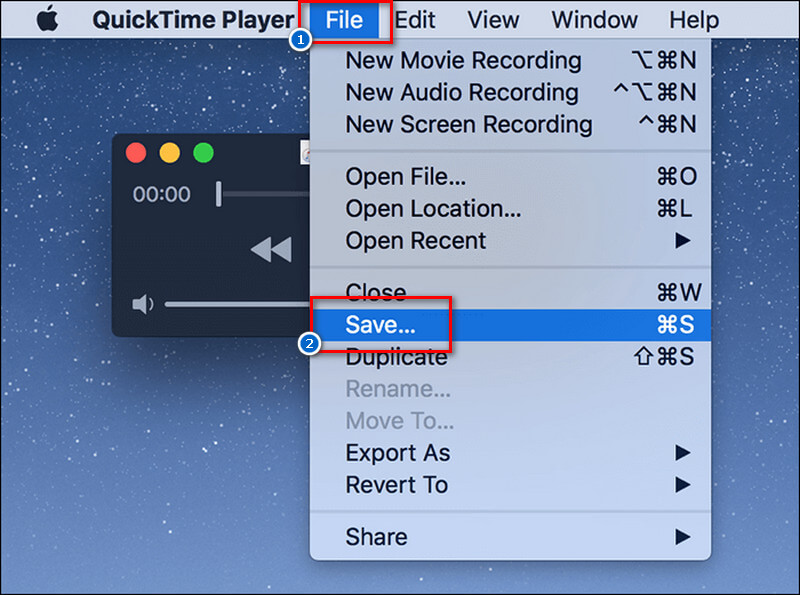
After you capture the voice translation, hit the stop button or press the keys "Command + Control + Esc." A preview of your recording will appear on your screen so you can watch it again. Lastly, you can save it by going to File > Save and selecting a location on your Mac.
Capture Google Translate Audio Using Third Party Tools
1. Aqua Demo
Does anyone prefer high-quality recording? Go for the Aqua Demo. This tool is versatile and offers a range of recording functions. It comes with video, audio, game, window, phone, and web recorders, as well as a screen capture. Additionally, the tool can record screen and audio on Windows and Mac with no additional setup required. That said, you can capture both system and microphone input, along with your computer screen, which is perfect for recording Google Translate voice clearly. You can also add your own voice if needed. Apart from that, if you want to create a translation tutorial, you can use its annotation tools, such as highlights, shapes, lines, etc., to emphasize important translations or text while the Google Translate voice plays. Moreover, Aqua Demo lets you choose a specific area of the screen to record, from full-screen to a custom region. Follow the detailed description below.
Step 1. Install the Recording Software
Using the download buttons above for Windows and Mac, you can download the Aqua Demo installer. After downloading, locate the file and start the installation process. Once done, it will launch automatically and explore the tool's interface.

Step 2. Customize its Recording Settings
Next, please navigate to the recording settings and modify them as you like. Simply, click the Settings dropdown menu and select "Output Settings." Here, you can set your preferred audio and video formats, quality, frame rate, and other output settings. You can also tweak the sound, camera, general, and hotkey settings.

Step 3. Start to record Google Translate Voice
Afterward, go to Google Translate and enter the phrases you want to translate and record. Then, set the recording area and enable the System Sound to capture internal sound. When ready, click the Rec button and the recording will start in 3 seconds.
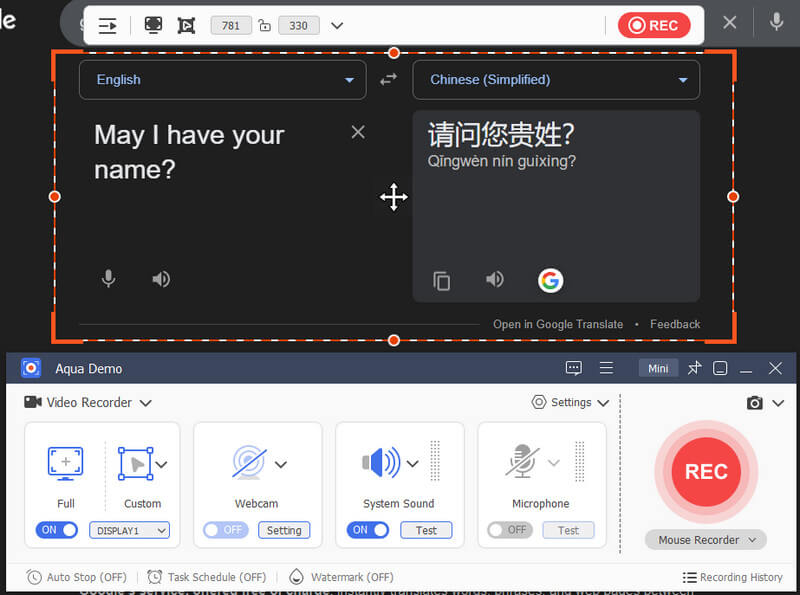
Step 4. Stop the Recording
Once the recording starts, click the volume button in Google Translate, and it will start speaking. Repeat the process if you have many phrases to record. When you're done, click the stop icon in the menu bar to end the recording.
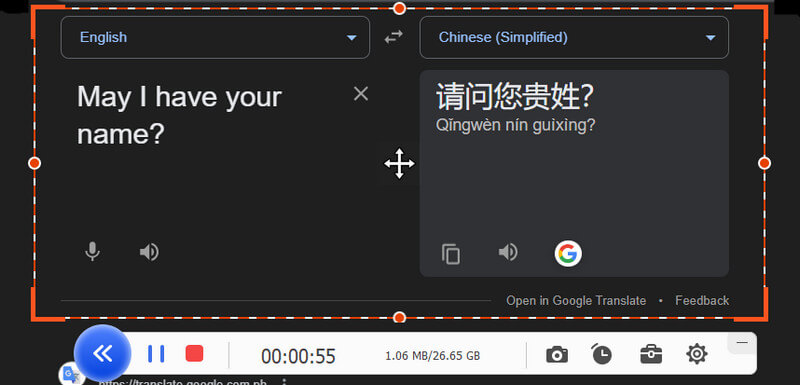
Step 5. Preview the Recorded Google Voice Translation
After the recording ends, the tool automatically saves it to the specified output folder. Then, a pop-up tab will show up on your screen. Here, you can preview the recorded Google Translation or edit and trim it (if needed). Finally, exit the recording tool and share the translation video with everyone.
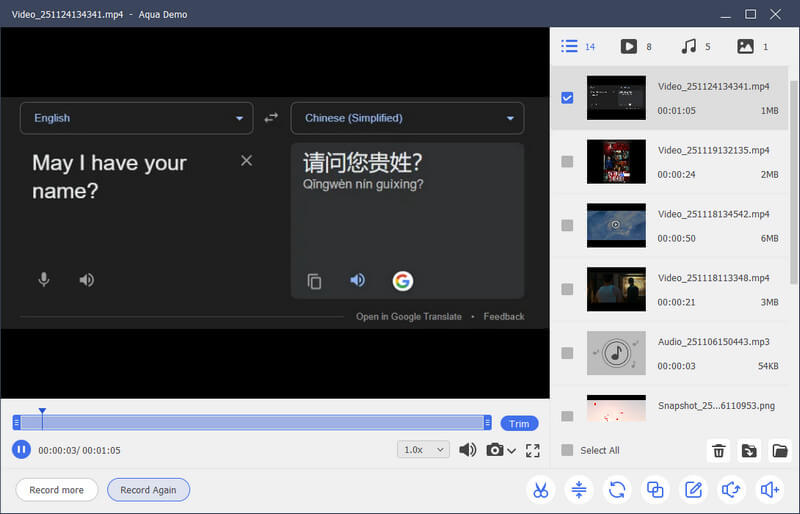
2. AceThinker Free Online Screen Recorder
For users who prefer third-party screen recorders but don’t want to install additional software. In that case, you can choose AceThinker Free Online Screen Recorder. The tool runs in web browsers such as Microsoft Edge, Opera, Google Chrome, Firefox, and others. That means no software installation, and you can use it anywhere on any device. Like the other recording tools, it also captures audio from both the desktop and the microphone, with the computer screen and webcam. Additionally, the tool allows you to capture specific browser tabs, the full screen, or the entire window, depending on your preference. Moreover, there is no time limit for your recordings, so you can capture long translation sessions. See the provided guide below.
Step 1. Visit Google Translate
Start by visiting Google Translate on your web browser. Next, type or paste the phrase/s that you wish to translate into other languages. Once done, proceed to set up the online screen recorder.
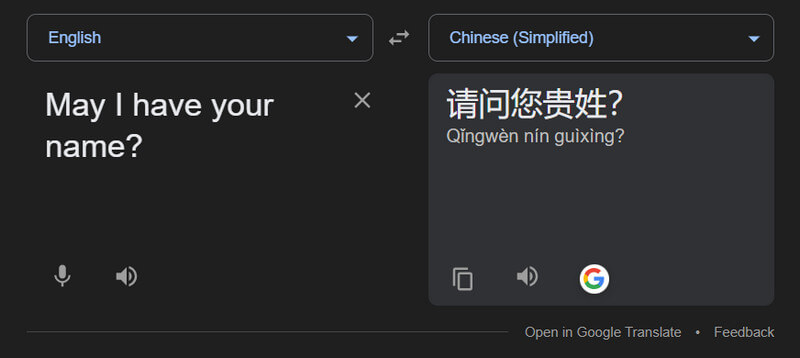
Step 2. Set Up Online Screen Recorder
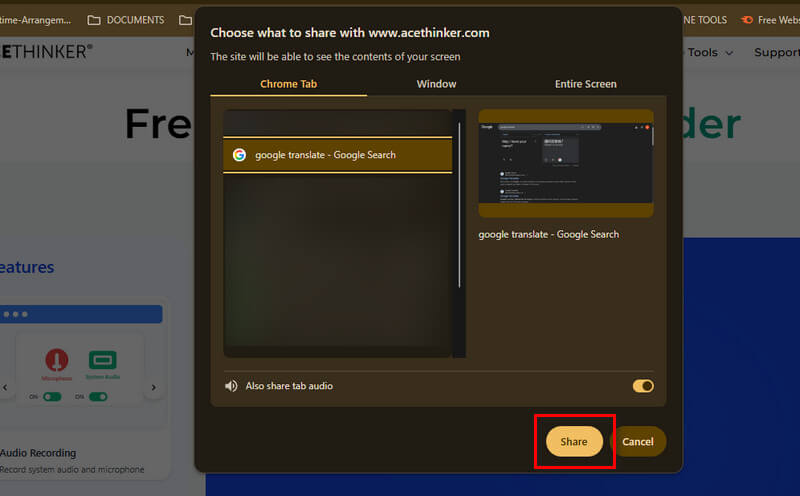
On another browser tab, visit AceThinker Free Online Screen Recorder. Then enable the audio sources, such as system sound and the microphone (if needed). After that, click "Start Recording" below and select the Google Translate browser tab in the pop-up screen.
Step 3. Start and Stop the Recording
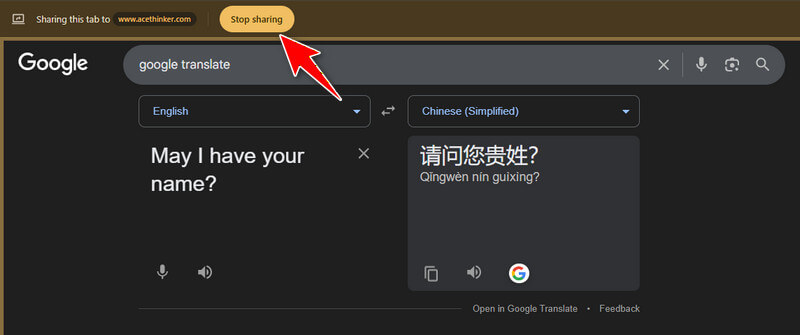
After selecting a tab, click the "Share" button to start the recording. You can also directly go to the recorded tab after clicking the share button. While recording, click the volume icon in the translated language to start speaking.
Step 4. Save Google Translate Voice Recording
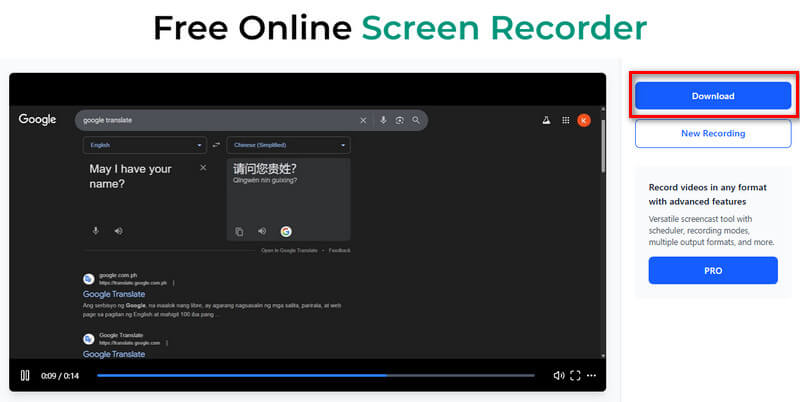
Once done, click "Stop Sharing" below the address bar, then go back to the recording tool. Here, click "Stop Recording" to end it. Next, preview the recording from the next window and download it afterward.
Record Google Translate Voice on Mobile
1. Easy Voice Recorder
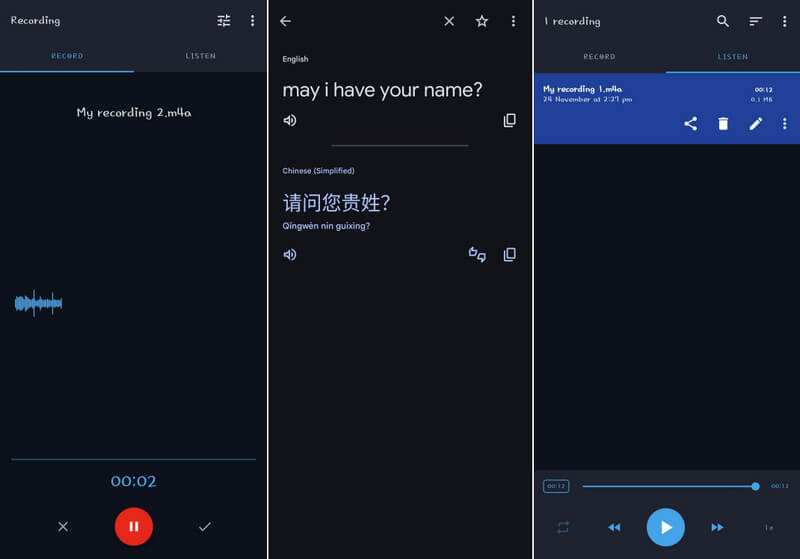
Easy Voice Recorder is an Android app you can use to record your voice. It works even when the app is not on screen or when your phone is locked. It’s great for capturing long audio, like class discussions, voice notes, and even Google Voice translations, without needing to stay in the app. While recording, you can see a waveform or level meter that shows how loud your voice is. This helps you know if the audio is too quiet or too noisy. However, since it is a voice recorder, there is a chance you will pick up background noise, which is not good for recordings. On top of that, the tool lets you record audio in high-quality formats like PCM (uncompressed), which captures clear, detailed sound, perfect for spoken translations. You can also playback your recordings with standard controls like play, pause, and skip.
2. Voice Recorder and Audio Editor
For iOS users, you can use Voice Recorder & Audio Editor to record voice from Google Translate. In addition, the app supports background recording, so you can switch to another app or even lock your screen to capture audio. This lets you capture Google Translate’s spoken translations while the voice recorder app runs quietly in the background. You can also use the built-in trimming tool to cut out any parts you don’t need, making your saved clip clean and focused. Furthermore, you can create a recording loop, which is handy if you want to review important audio constantly. Moreover, the tool allows you to upload your recordings to services such as Dropbox, Google Drive, iCloud, OneDrive, and Box.
Frequently Asked Questions
How does Google Translate audio work?
Google Translate audio works by turning text into spoken words using text-to-speech technology. When you type or paste text, the app reads it aloud in a natural-sounding voice. You can play, pause, and replay the voice anytime you need.

How accurate is Google Translate Voice?
According to the Weglot article, Google Translate’s accuracy varies by language, ranging from 55% to 94%. It is usually accurate for simple words and common phrases. However, it may make mistakes with slang, long sentences, or complex grammar. Still, it is helpful for basic communication and quick translations.
How to use Google Translate for live audio?
To use Google Translate for live audio, open the app and tap the Conversation or Transcribe mode. Then, start speaking, and the app will translate your voice in real time. Make sure you are in a quiet place so the app can hear you clearly.
Conclusion
Recording Google Translate voice is simple once you know the right tools and methods. You can use built-in recorders on Windows, macOS, iOS, and Android, or try third-party Google Translate audio recording software, like Aqua Demo, for more advanced options. Additionally, choosing the right method depends on your device and the type of audio you want to capture. Moreover, it’s important to remember ethical and legal considerations, especially when recording voices or sharing audio with others. Always make sure you have permission and use your recordings responsibly. In the end, recording Google Translate voice is very helpful for language learning, content creation, or personal projects. Feel free to experiment with different tools and settings to find the method that best suits your needs.
A 2021 study conducted by the UCLA Medical Center found that Google Translate preserved the overall meaning for 82.5% of the translations. But the accuracy between languages spanned 55% to 94%.